Set up your class
Invite parents by email or create student accounts and print login cards.
 gevezebaykuş
Create your class, assign work from MEB themes and host a live classroom quiz. Follow progress together as students practice at their own levels.
Create a teacher account
Invite parents by email or create student accounts and print login cards.
Assign ready-made work from MEB grades 2–8. Grades 9–12 themes are listed on the site; select topics yourself while mapping is in progress.
See weekly activity and student progress on the class dashboard; practice with classroom quizzes.
Register as a teacher with your name. Verification requires at least 85 out of 100 and administrator approval. Until approval, try one class with five students.
Choose a class and grade, add students and prepare the first assignment. Print login cards for teacher-created accounts.
After verification, use parent email invitations or QR parent cards. The email flow requires parent consent followed by final teacher approval.
Choose a MEB unit pack or individual topics. Set exam duration and dates, then publish; learners answer in their own accounts.
Use question analysis to identify difficulties. Start a classroom quiz to display a PIN on the projector; learners join on their phones.
Classes → Create a class has four steps: class and grade → students → first assignment → ready. If the teacher creates accounts, login cards contain generated usernames and passwords.
A class can be ready for practice without student email addresses.
Open in the app ↗
A verified teacher enters a student name and parent email. The parent follows the link, sets a password and gives consent; final teacher approval adds the student and sends login details to the parent.
Account creation, consent and the parent–child link are handled in the same flow.
Open in the app ↗
For mapped grades 2–8, selecting a unit suggests a seven-day vocabulary and grammar pack targeting 30 correct answers. Teachers can also select topics for class-wide or individual assignments.
Teachers choose the scope and follow progress in the class dashboard. High-school themes are listed; topic mapping is still pending.
Open in the app ↗
Class → Exams → New exam offers a template or builder; choose duration and dates, then publish. After submissions, teachers can see results, question analysis, topic performance and CSV export.
Identify difficult questions to plan the next lesson or assignment. Teachers choose when students can see answers.
Open in the app ↗
Prepare a printed exam for your class in one tap, with question papers, separate optical answer sheets and a teacher copy.
Choose a MEB theme for your class grade, with learning outcomes printed on the paper. Or prepare it by level or topic.
Every question has four options. Use the same order for everyone or shuffle the same questions and options: copying gets harder while the assessment stays fair.
Each student gets a paper with their full name and a unique QR code. The paper number is at the top right; the QR code contains no personal information.
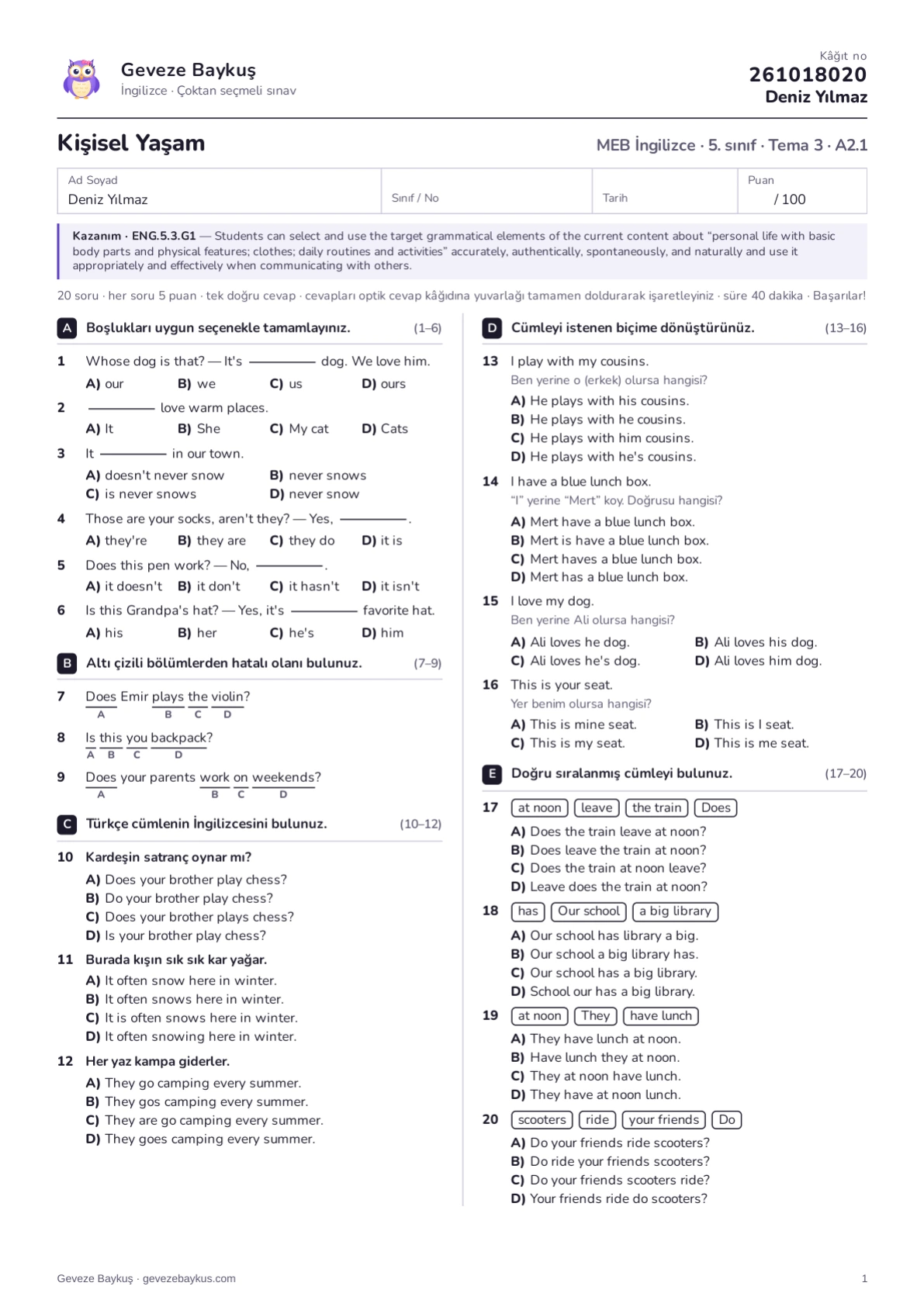 Open full size ↗
MEB grade 5 · Theme 3 · Grammar. Learning outcome, student name and paper number appear at the top.
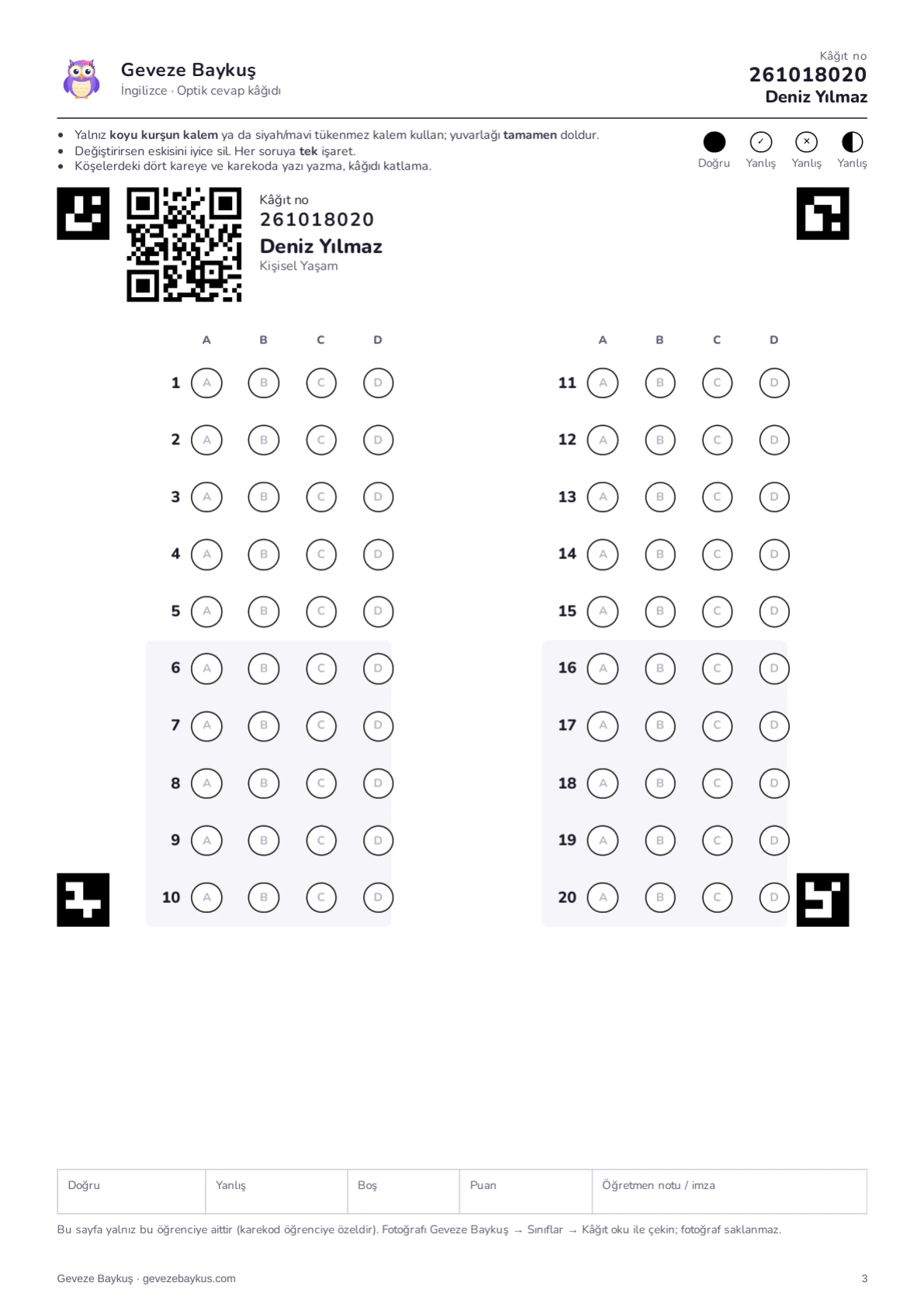 Open full size ↗
Large bubbles, a personal QR code, the student’s name and the paper number. Nothing to cut; scan it with a phone.
Actual product output from the Turkish interface; names belong to sample test accounts.
Select your class, students and content.
Print question papers and answer sheets separately, with a teacher copy and answer key.
Take a phone photo of the answer sheet; the QR code identifies the student.
The system reads and grades. Correct uncertain marks and confirm each student’s result.
Start a classroom quiz and choose content, up to five topics or a level, question count and time. Prepare quiz displays a six-digit PIN and QR code on the board; students join on their phones.
The shared display hosts the quiz while learners answer on their devices. The PIN in the sample image is inactive.
Open in the app ↗
Create a school or join with a school code in My School. Teachers at the school can use a shared exam pool and weekly school ranking, and post class announcements.
Colleagues can use the shared pool while managing their own classes.
Open in the app ↗
Turkish interface and sample accounts. Separate captures for light and dark appearances.
Choose a unit at your class’s grade to inspect its assignment pack.
Prepare an exam by choosing content, level and duration.

For children's safety: you score at least 85 in the 100-question English proficiency test (Pre-A1 to B2) and send your school details; our administrator approves. One attempt per day, three in total. Passing unlocks all lessons; after admin approval class limits are lifted and parent invitations open. Before the test you can explore the app in preview mode and try it with 1 class and 5 students.
Link to this question →Teacher and student accounts are free.
Link to this question →No ads or third-party trackers. Children under 13 who sign up themselves need parental consent. For class accounts you create, consent is the school's/teacher's responsibility; with parent email invitations the parent consents directly. Students need no email.
Link to this question →No problem: paste student names and usernames and passwords are generated for you to print as cards.
Link to this question →Phones, tablets and computers in the browser; it can be added to the home screen as an app. Store apps are coming soon.
Link to this question →Create a teacher account, complete verification and set up your class.
Create a teacher account